
How to Change Android Firmware—Easy Step-by-Step Guide
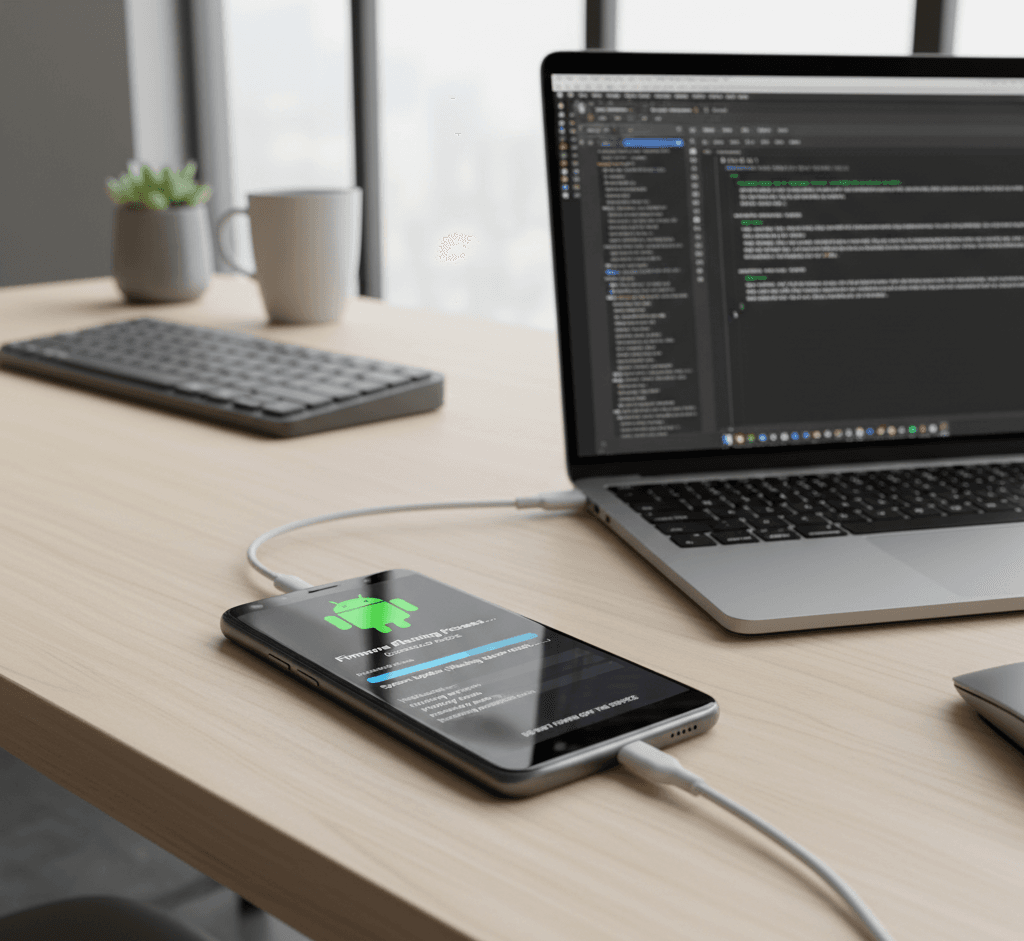
If you’re looking to refresh your Android phone, fix persistent software bugs, or install a clean version of Android, changing the firmware (also known as flashing the firmware) can be a powerful solution. In this guide, we’ll walk you through the process of updating or replacing your Android firmware—from what firmware means, to preparing your phone, to performing the flash, and finally to troubleshooting. Let’s dive in.
1. What is Android Firmware & Why Change It?
What is firmware?
“Firmware” refers to the low-level software that controls the core hardware and system partitions of your Android device. It sits between the hardware and the operating system (Android itself) and includes the bootloader, system image, radio/modem code, and vendor partitions.
When you hear terms like “stock firmware,” “custom ROM,” and “flash image,” they are all connected to firmware-level changes.
Why you might want to change Android firmware
- Fix bugs or boot-loop issues: If your phone is crashing, stuck at boot, or having software glitches, installing fresh firmware can clear corrupted system files.
- Update to latest Android version: Some devices stop getting updates from manufacturers. Flashing a newer firmware or custom ROM can extend life.
- Remove bloatware / carrier restrictions: Stock firmware often contains manufacturer or carrier apps; changing firmware may allow a leaner system.
- Custom ROMs and advanced features: Some users want advanced custom ROMs (like LineageOS) for extra features, better performance, or privacy. XDA Forums + 3WIRED + 3iFixit + 3
- Switch region firmware or switch out-of-band firmware (for example, on Samsung phones you might change region-CSC firmware) to enable features. HardReset.info
Risks & disclaimers
Before proceeding, you must understand the risks:
- Changing firmware may void your warranty.
- Incorrect firmware (wrong model, region, or version) may brick your device (render it unusable).
- You’ll often need to unlock the bootloader, which may wipe data and disable certain features (e.g., banking apps, SafetyNet).
- Always back up your data.
- Follow exactly the steps for your exact model.
With that in mind—let’s get ready.
2. Key Preparations Before Flashing Firmware
2.1 Back up your data.
Since firmware flashing often wipes your device (factory reset) or may go wrong, you should:
- Backup contacts, photos, and messages (Google backup, manual export).
- Save app data if possible (either via the app’s own backup or via backup tools).
- Ensure you have your important files backed up to the cloud or PC.
2.2 Check device compatibility & download correct firmware
- Identify your exact device model (e.g., “Galaxy A52 SM-A525F,” “OnePlus 8T IN2013”).
- Note the region/CSC code if on Samsung or similar.
- Download the correct stock firmware file or the custom ROM you plan to use. For Samsung, guides show steps to download region-correct firmware. HardReset.info+1
- If using a custom ROM, check the build supports your device’s codename (e.g., “alioth” for Poco F3) and variant. Reddit
- Download necessary tools: USB drivers for your device, a flashing tool (e.g., Odin for Samsung), or fastboot/adb tools. Wikipedia+1
2.3 Enable Developer Options & USB Debugging (for many devices)
- On your phone, go to Settings → About Phone → Build Number (tap 7 times) to unlock Developer Options.
- Then in Settings → Developer Options: enable OEM unlocking and USB debugging. For certain flashing tools (especially official ones), OEM unlocking must be enabled. For example, the Android Flash Tool page notes this requirement. Android Open Source Project
- Fully charge your phone (preferably >50%) to avoid power failure during the flash, which can brick the phone.
2.4 Unlock the Bootloader (if required)
Many Android devices require you to unlock the bootloader before you can flash custom or non-official firmware. Steps generally:
- Use fastboot commands (e.g., fastboot oem unlock) or a manufacturer-specific method.
- Unlocking often triggers a wipe of all user data.
- Some manufacturers void the warranty once you unlock the bootloader.
2.5 Set up your PC environment (if using PC).
- Install device USB drivers.
- Install the flashing tool (Odin for Samsung, MiFlash for Xiaomi, or Fastboot tools for generic Android).
- Use a high-quality USB cable.
- Close other apps on PC to avoid interference.
- Make sure you have a good internet connection if you need to download firmware at this stage.
3. Step-by-Step: How to Change Android Firmware
Here’s a general step-by-step process. Remember: the exact steps may differ slightly depending on brand/manufacturer.
3.1 Download correct firmware and verify file integrity.
- Download official stock firmware (or custom ROM) for your exact model and region.
- For Samsung: download a .tar.md5 file, with the region CSC matching your device. HardReset.info
- For other brands: you might get .zip or .img files.
- Verify the checksum if available (to ensure the file isn’t corrupted).
3.2 Boot phone into the flashing mode
- For Samsung: Power off → hold Volume Down + Power + Home/Bixby (depending on model) to enter Download Mode → confirm with Volume Up. HardReset.info
- For other phones: usually Power + Volume Down (or Up) to enter Fastboot Mode or Recovery Mode.
- Make sure the phone is recognized by your PC (e.g., in Odin the ID:COM box turns blue).
3.3 Connect phone to PC and load firmware in tool
- Launch your flashing tool (e.g., Odin).
- In Odin: you will see your device listed. Then you load the firmware file in the AP/PDA section. Ensure options like Auto Reboot and F. Reset Time are checked. HardReset.info
- For other tools: follow their UI to select the firmware image.
3.4 Start the flashing process.
- Click “Start” (or equivalent) in the tool.
- Do not disconnect the cable or interrupt the process. Wait until the tool shows “PASS” or “Success.”
- The phone will reboot automatically once done.
3.5 First boot & setup
- The first boot after a firmware change may take longer (5-10 minutes).
- If your device gets stuck in a boot loop, boot into recovery mode and perform a factory reset (wipe data/cache), then reboot. Many guides mention this for Samsung. HardReset.info
- After booting, set up your device: log into Google, restore your apps, preferences, etc.
3.6 Post-flash checks & tweaks
- In Settings → About Phone: check the firmware version to verify that the new version is installed.
- Check all the basic functions (WiFi, mobile data, camera, fingerprint sensor, etc.).
- If you installed a custom ROM, you might need to install Google Apps (GApps) separately.
- Enable automatic updates (if supported), and check for any known bugs with the version you installed (forums/Reddit).
4. Custom ROMs vs. Stock Firmware: What’s the Difference?
Stock Firmware
This is the firmware provided by the phone’s manufacturer/carrier. It typically includes all manufacturer features and a branded UI and receives OTA updates (at least for some years).
Pros: Stability, warranty support, carrier-specific features.
Cons: Might include bloatware, slower updates, and a locked bootloader.
Custom ROM / Modified Firmware
Examples include LineageOS, ProtonAOSP, etc. These are community-built or independent firmware versions for Android devices. iFixit
Pros: Clean UI, more updates for older devices, less bloat.
Cons: More risk, may void warranty, some features may not work (camera, sensors, DRM).
Reddit users often highlight these trade-offs:
“I only say this because you’re going to get a lot of people assuming this is for flashing Android firmware on Android devices.” Reddit
Which should you pick?
- If you value stability and warranty, go for stock firmware.
- If you’re comfortable with risk and want extra features or to extend the life of an old phone, try a custom ROM.
Be sure you have good instructions specific to your model.
5. Common Issues & Troubleshooting
Issue: Flashing fails / tool errors
- Make sure firmware is correct for your device model and region.
- Use the original USB cable and USB port directly on the PC (avoid hubs).
- Ensure drivers are installed properly and the phone is detected.
- If using Odin/other, ensure the tool version is compatible.
Issue: Boot loop after flash
- Boot into Recovery Mode and perform wipe data/factory reset and/or wipe cache partition. Many Samsung guides mention this as a fallback. HardReset.info
- If still stuck, re-flash again or revert to previous firmware.
Issue: Device not recognized by PC
- Try another USB cable.
- Install correct USB drivers.
- Try another USB port or PC.
- Reboot both phone and PC.
Issue: Features not working (camera, fingerprint, mobile network)
- Check if firmware is fully compatible (region, variant).
- Check online forums for known bugs with that build.
- Consider switching back to stock or using a different build.
Issue: Bank apps and SafetyNet not working after custom ROM
- Many custom ROMs or unlocked bootloader statuses may break device integrity checks.
- If you need these features, either stay on stock firmware or look for ROMs that support SafetyNet pass.
6. Safe Checklist Before You Start
Before you hit “Start” and flash the firmware, make sure you have ticked off this checklist:
- The device model is correctly identified.
- Firmware file matches model & region.
- Backup of all important data.
- Battery is at least 50% (ideally above 80%).
- USB drivers installed on PC.
- Original USB cable.
- Developer Options enabled → OEM Unlocking, USB Debugging.
- Bootloader unlocked (if required).
- Understand that the warranty may be void.
- Know how to reboot into Recovery/Fastboot mode if something goes wrong.
7. Popular Keywords and Terms to Know
When you’re working with Android firmware, you’ll frequently encounter these keywords—knowing them helps you search for correct guides and files:
- Flash / Flashing: Installing a firmware image onto a device.
- Stock firmware: Official firmware provided by the manufacturer.
- Custom ROM: Modified firmware built by third-party teams.
- Bootloader: The program that starts your device and loads the operating system.
- OEM Unlocking: A setting that allows unlocking the bootloader.
- Fastboot/ADB: Tools used to communicate with the device from a PC.
- Recovery Mode: A special mode to apply updates, clear data, etc. Wikipedia+1
- Download Mode (Samsung): A mode specifically for flashing via Odin.
- CSC / Region Code: For Samsung phones, this determines region-specific firmware features.
- Bricking: Rendering the device unusable due to software error.
- SafetyNet: Google API to check device integrity; unlocking the bootloader or custom ROM may fail this check.
- GApps: Google Apps package needed when installing custom ROM without built-in Google services.
8. Use Case: Flashing Firmware on a Samsung Galaxy Device
Let’s walk through a simplified example for a Samsung device—just to solidify the steps.
- Download the correct .tar.md5 firmware for your model and region. HardReset.info
- Install Samsung USB drivers on your PC.
- Power off phone. Press Volume Down + Power + Home/Bixby to enter Download Mode → press Volume Up to confirm.
- Open Odin on PC; connect phone via USB; the ID:COM box should turn blue/green.
- Load the firmware file under AP (or PDA) in Odin. Ensure Auto Reboot and F. Reset Time are checked. HardReset.info
- Click Start. Wait until Odin shows “PASS.”
- Phone reboots. Wait for the first boot (may take 5-10 min).
- If stuck in a boot loop: power off, boot into Recovery Mode (Volume Up + Power + Home/Bixby) → Wipe data/factory reset → reboot.
This process should have your Samsung device running the new firmware. Always check that all hardware and network functions are operating correctly post-flash.
9. When to Use Custom ROMs & When to Stick With Stock
Here are some scenarios:
- Stick with stock firmware if you:
- Rely on manufacturer updates and guarantees.
- Need maximum stability.
- Need features like Samsung Knox, secure banking apps, and warranty support.
- Consider a custom ROM if you:
- Have an older device no longer getting updates, and you want to refresh it.
- Don’t mind some minor bugs/trade-offs in exchange for a leaner system and better performance.
- Are comfortable with slight risk and troubleshooting.
Whatever you choose, always research your exact device model, read forum threads about other users’ experiences, and be ready with a backup plan in case something goes wrong.
10. Final Thoughts & Best Practices
Changing Android firmware is a powerful tool: it can breathe new life into an old phone, fix stubborn issues, or give you advanced capabilities. But it comes with responsibilities: doing the homework, ensuring compatibility, and being prepared for problems.
Best practice tips:
- Use trusted sources for firmware and files—avoid random downloads.
- Keep copies of your original stock firmware so you can revert if needed.
- After flashing, update the phone’s system and apps fully.
- Keep your phone’s bootloader/unlock status noted in case you sell or service the device later.
- For custom ROMs: check community forums for known bugs, support threads, and updates.
✅ Recap
You learned:
- What firmware means and why you might change it.
- Step-by-step preparation: backups, correct firmware, bootloader unlocking.
- The process of flashing: entering flash mode, using PC tools, and verifying results.
- The difference between stock firmware and custom ROMs.
- How to troubleshoot common issues.
- Key terminology to know.
- A walkthrough example (Samsung).
- When to use stock vs custom firmware.
- Best practices and final tips.
By following these steps carefully, you can change the firmware of your Android device with confidence and achieve results like improved performance, new features, or a more up-to-date system.
🔗 References:
- https://www.wired.com/story/keep-your-old-android-phone-running-longer-with-lineageos/
- https://www.hardreset.info/articles/firmware-change-update-in-samsung/
- https://www.reddit.com/r/PocoPhones/comments/s64jxl/a_beginners_guide_to_everything_you_need_to_know/
- https://fr.wikipedia.org/wiki/Odin_%28logiciel%29
- https://source.android.com/docs/setup/test/flash
- https://www.ifixit.com/Guide/How+to+install+a+different+operating+system+on+an+Android+Phone/155962
- https://www.reddit.com/r/SBCGaming/comments/1f01eci/guide_firmware_flashing_with_android_devices/
- https://en.wikipedia.org/wiki/Android_recovery_mode
- Some advanced users even go a step further — installing full Linux systems like Kali Linux on Android without root access to test security tools and learn ethical hacking.
👉 Check out our full tutorial here: How to Install Kali Linux on Android Without Root
https://lazzani.com/how-to-install-kali-linux-on-android-without-root/